
Metz Connect
Since firmware version 1.5, the EWIO2 data loggers from Metz Connect come with the Universal Cloud Adapter pre-installed. The integrated M-Bus and RS485 interfaces of the device can also be used by the Cloud Adapter.
Setup
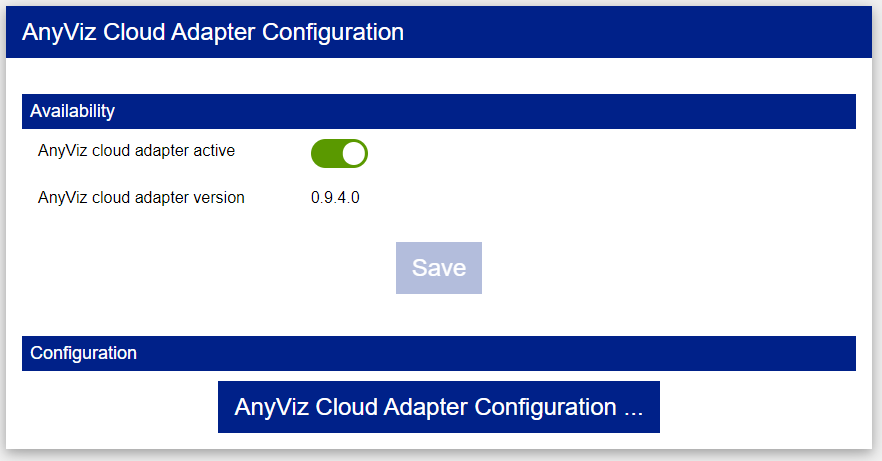
To activate the Cloud Adapter, open the web interface of the EWIO2 and navigate to System → AnyViz. Enable AnyViz cloud adapter active and click Save. Then click AnyViz Cloud Adapter Configuration ... to open the web interface of the Cloud Adapter.
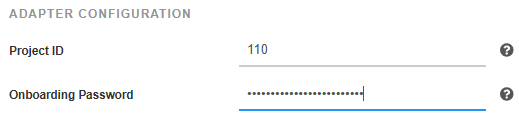
Enter the AnyViz project ID and an onboarding password there.
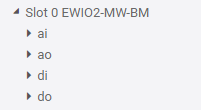
After the EWIO2 is connected to AnyViz, all integrated IOs are automatically available in the AnyViz portal.
 Universal Cloud Adapter
Connect M-Bus Devices
Depending on the model series, the EWIO2 has an integrated M-Bus level converter. The M-Bus interface can be used by the integrated functions of the device as well as by the Cloud Adapter. For this purpose, Metz Connect provides a TCP converter on the device.
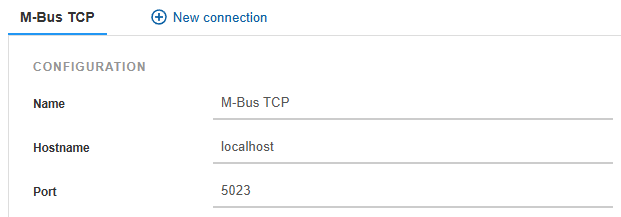
To set up M-Bus communication, create a new connection of the type M-Bus over TCP in the Cloud Adapter with the following parameters:
| Hostname | localhost |
| Port | 5023 |
The default baud rate is 2400. To change it, navigate to System → MBus in the web interface of the EWIO2 and select the desired baud rate.
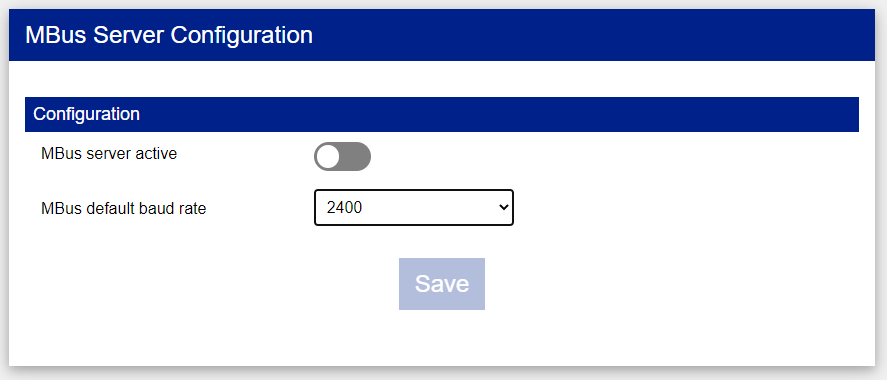
Note: Only enable MBus server active if the TCP port should also be accessible from outside the device.
MBusConnect Modbus RTU Devices
The EWIO2 has two RS485 interfaces that can be used to communicate with Modbus slaves. Both interfaces are provided by the EWIO2 via Modbus TCP.
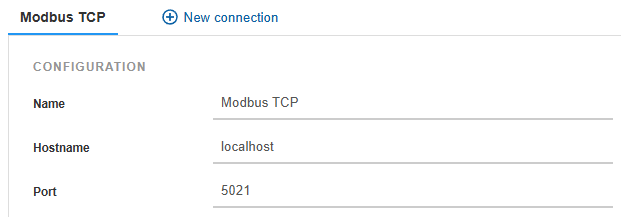
To set up Modbus communication, create a new connection of the type Modbus TCP in the Cloud Adapter with the following parameters:
| Hostname | localhost |
| Port |
5021 for the 4-pole terminals A- and B+ at the top of the device 5022 for the terminals A'- and B'+ of the wide terminal strip |
For more information, refer to the document EWIO2 Modbus Router, which is available at www.metz-connect.com.
Modbus