
MikroTik
The AnyViz Cloud Adapter can be installed as a container on MikroTik routers and gateways. The installation is done with a single command in the RouterOS terminal via WinBox or WebFig.
Prerequisites
The Cloud Adapter is compatible with all MikroTik devices that support containers. These are devices with ARM, ARM64 or x86 processors, such as the MikroTik KNOT Embedded LTE4 or the KNOT Gateway LR8. Devices with MIPS processors are not supported.
To use containers, the container package must be installed and container mode must be enabled (see MikroTik documentation). The installation script takes care of both steps.
Installation
- Open WinBox or WebFig (in a web browser)
- Open a New Terminal
- Paste the following command to start the automatic installation:
/tool fetch url="https://install.anyviz.io/mikrotik/install.rsc" dst-path=anyviz-install.rsc; /import anyviz-install.rsc
Note: If the container package is missing, the script installs it and the router reboots. If container mode is not yet enabled, you will be asked to briefly press the reset/mode button on the device (or to power-cycle it). In both cases, simply run the command again afterwards.
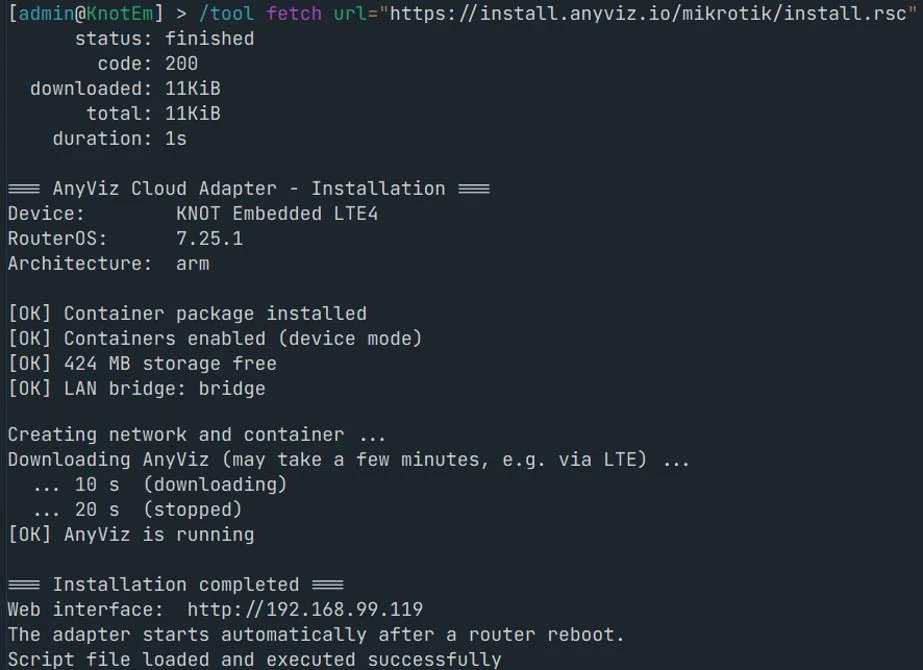
After the installation script has completed, the terminal output should look like this:
Setup
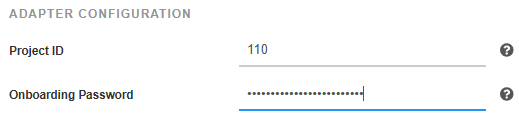
After successful installation, the web interface of the Cloud Adapter is available at the IP address shown at the end of the script output (e.g. http://192.168.99.119). Enter the AnyViz project ID and an onboarding password there.
The Cloud Adapter starts automatically after a reboot of the router.
Universal Cloud AdapterIP Address
The Cloud Adapter runs in a container with its own virtual network interface (vethAnyViz), which is attached to the LAN bridge of the router. It therefore has its own IP address in the LAN and behaves like a separate device on the network.
By default, the IP address is obtained via DHCP. If the router itself is the DHCP server for the LAN, the installation script reserves the address as a static lease, so that the Cloud Adapter is always reachable at the same address.
Note: If no DHCP server is running on the LAN bridge of the router and there is no other DHCP server in the network, the Cloud Adapter does not receive an IP address. In this case, assign a static address in WinBox under Interfaces → VETH → vethAnyViz: disable DHCP and enter the address (e.g. 192.168.88.50/24) and gateway.
If the IP address is not displayed at the end of the script output, it can be looked up later in WinBox under Interfaces → VETH → vethAnyViz (DHCP Address).
Uninstallation
To uninstall the container, run the following command as described under Installation:
/tool fetch url="https://install.anyviz.io/mikrotik/uninstall.rsc" dst-path=anyviz-uninstall.rsc; /import anyviz-uninstall.rsc